RE-REGISTER SYSTEM GALAXY
At this point you can open System Galaxy and re-register the system.

REQUIREMENTS …
-
The GCS Core Services are running (GCS Web API service, GCS ClientGW, GCS Comm, GCS DataLoader, GCS DBWriter, GCS Event service, IIS Service, idProducer Master service and Connector service ) plus any other GCS Service that this site needs.
-
Launch/Start System Galaxy from the desktop icon.
-
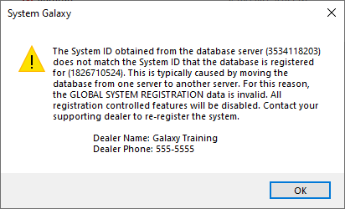
Click OK to acknowledge the System ID message. This message is stating that the software must be re-registered you moved the database to a new computer.
-
Sign in with a master login that was valid at the original server.
-
Open the System Registration screen from the menu: Configure > Options >Register > System.
-
In the Registration screen, make sure the Max Badge Printer Count is correct before you register the system.
-
Contact Customer Support for assistance in re-registering your system. After you receive the registration code, you must enter it into the Code field and click APPLY to save the registration.
-
Restart System Galaxy to verify your registration warnings are gone.